


Introduction
If you use torrents, privacy matters. Many people turn on a VPN and think they are fully protected. But if your VPN drops for a moment, qBittorrent can switch back to your normal internet connection. When that happens, your real IP address can show up to other people in the torrent swarm.
That is why learning how to bind vpn to qbittorrent is so helpful. Binding makes qBittorrent use only the VPN connection. If the VPN disconnects, qBittorrent stops transferring data. No VPN means no torrent traffic.
What Binding a VPN to qBittorrent Means
Your computer can have more than one network connection. For example, it can have your normal Wi Fi or Ethernet connection, and it can also have a VPN connection created by your VPN app.
When you bind qBittorrent to the VPN connection, qBittorrent is only allowed to use that VPN network adapter. If the VPN adapter is not active, qBittorrent cannot connect to peers. This stops downloads and uploads.
This is one of the best ways to lower the risk of an IP leak while torrenting.
Why You Should Bind Your VPN to qBittorrent
When you torrent, your IP address is visible to other peers. Your IP can also be logged by groups that monitor torrent swarms.
Even good VPNs can disconnect sometimes. This can happen because of weak Wi Fi, laptop power saving settings, VPN server switching, or updates.
If your VPN disconnects and qBittorrent is not bound to it, qBittorrent may keep running on your normal internet. That is how IP leaks happen.
Binding helps prevent that.
What You Need Before You Start
Before you set this up, make sure you have these things.
A VPN installed and working qBittorrent installed Administrator access on your computer
It is best to use the latest version of qBittorrent from the official site at https://www.qbittorrent.org/
How to Bind VPN to qBittorrent Step by Step
Step 1: Connect to Your VPN
Open your VPN app and connect to a server. Wait until it says you are connected.
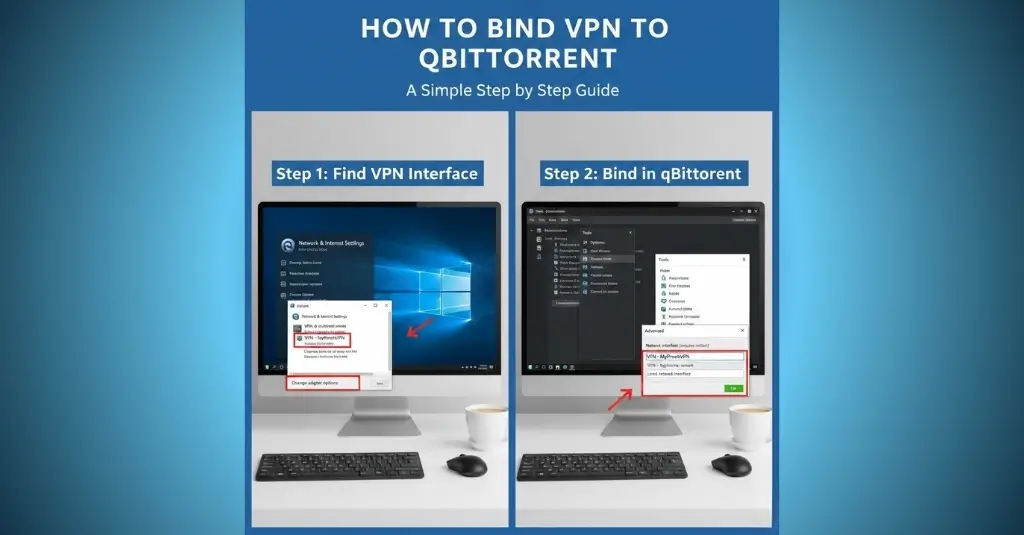
Step 2: Find Your VPN Network Adapter Name on Windows
On Windows, do this.
Press Windows key and R Type ncpa.cpl Press Enter
You will see a list of network connections. Look for your VPN adapter. It may say WireGuard, TAP, OpenVPN, or it may include your VPN brand name.
Write down the exact name.
On macOS, open System Settings, then Network. Look for the VPN connection name.
Step 3: Open Advanced Settings in qBittorrent
Open qBittorrent. Click Tools, then Options, then Advanced.
Step 4: Choose the VPN Network Interface
Find the setting called Network Interface. Open the drop down list. Select your VPN adapter name.
Do not select Any Interface.
Step 5: Apply and Restart qBittorrent
Click Apply, then OK. Close qBittorrent and open it again.
Step 6: Test the Binding
Keep qBittorrent open. Disconnect your VPN.
If binding works, your torrents should stop and show stalled or no connections.
Reconnect your VPN. Torrents should start again.
Step 7: Confirm Your Torrent IP
Use a torrent IP check tool if you want to confirm. The IP shown should match your VPN IP, not your home IP.
If it shows your home IP, go back to Advanced settings and make sure the correct network interface is selected.
Common Problems and Fixes
Wrong adapter selected. Go back and pick the VPN adapter. Any Interface selected. Change it to the VPN adapter. Did not restart qBittorrent. Restart it after applying changes. VPN changes adapter name. If you switch VPN types, check the adapter name again.
VPN Kill Switch vs Binding
A VPN kill switch blocks all internet if the VPN drops. Binding blocks only qBittorrent traffic if the VPN drops.
For the best protection, many people use both.
Final Notes
Binding your VPN to qBittorrent is one of the easiest ways to protect your real IP while torrenting. Once it is set up, qBittorrent will only work when the VPN is on.
If you want, tell me what operating system you use and what VPN you use. I can give you the exact adapter name to look for and the safest settings to turn on.
Frequently Asked Questions (FAQs)
It forces qBittorrent to use only the VPN network so it stops if the VPN drops.
It prevents IP leaks by blocking traffic when the VPN disconnects.
Yes, for qBittorrent only it stops transfers when the VPN is off.
qBittorrent Tools Options Advanced Network Interface select your VPN adapter save restart.
Choose the adapter that appears only when the VPN is connected.
Start a torrent, disconnect VPN, and transfers should stop and stay at zero.
Connect VPN first reopen qBittorrent then check Advanced Network Interface again
No binding does not reduce speed the VPN server quality affects speed.
No Network Interface binding is enough for most users.
Selecting Wi Fi or Ethernet instead of the VPN adapter.
